Sales Person Registration & Sign-In
All salesmans and Sales Person will be registered by the Trader’s Forum Team. A temporary password will be provided and can be changed/updated at any time by a salesmans and Sales Person
Sign-In
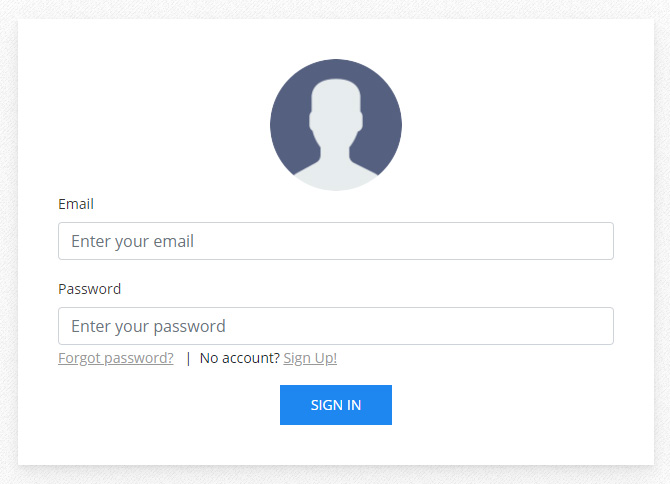
As a registered salesman / Sales Person you can login to the system with a following sign-in form:
Products & Features
Product List contains all the products in your online inventory. From here you can manage all the products
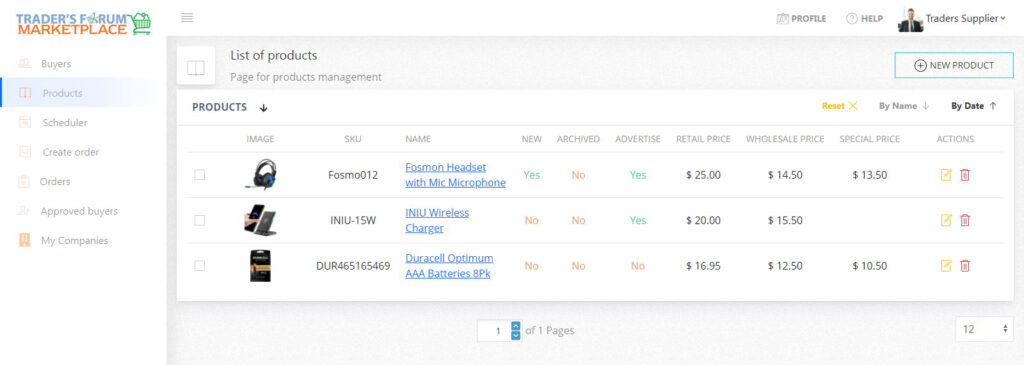
To Add new products :
- Click on Products on the left menu
- Click on
 button on the top left corner
 - Fill out all the necessary fields: Product Name, Description, Pricing info
- Add product images
- Click on ADD PRODUCT to save the info

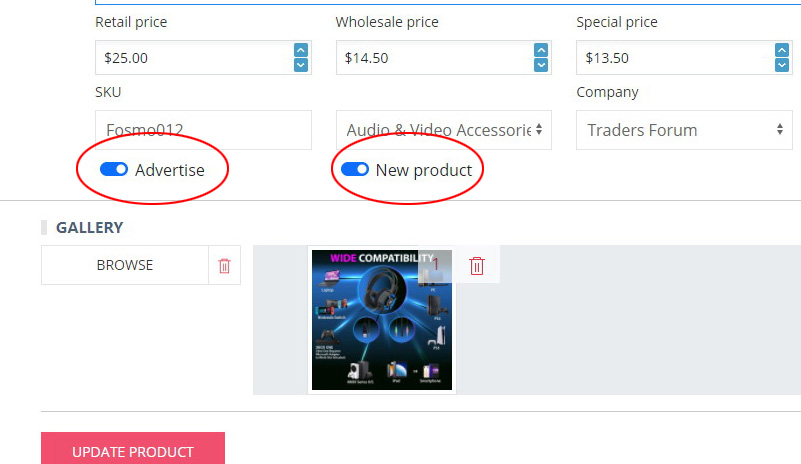
Advertise (Feature) a Product and New Product features are a great way to promote and bring more attention to your product line.
- Advertise feature brings the product on top of your items list and shows the price to non-registered buyers
- New Product feature creates a NEW label on your item
Both features can be activated while adding the product or added a any other time.
To activate these features:
- Click on Products on the left menu
- Click on the Edit icon
 to open the info
 - Set Advertise or /and New product to activate these features
- Click on UPDATE PRODUCT to save the info
A special price can be given to the item during the virtual show days
This feature can be activated while adding new product or added a any other time
- Click on Products on the left menu
- Click on the Edit icon to open the info
- Set the Special price
- Click on UPDATE PRODUCT to save the info

To Edit or Remove products, do the folloving:
- Click on Products on the left menu
- To Edit Item – click on Edit Product icon
- To Remove Item – click on Remove Product icon

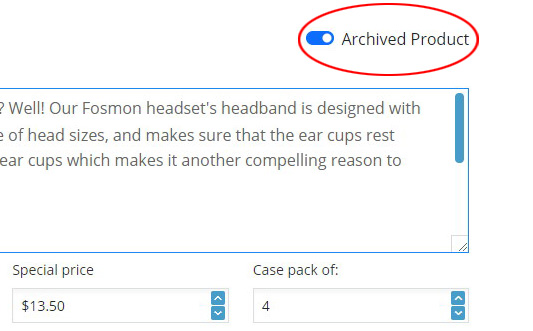
If your product is out of stock or temporary unavailable, you can place it to an archive.
- Click on Products on the left menu
- Click on the Edit icon to open the info
- Set Archived product on to activate this feature
- Click on UPDATE PRODUCT to save the info
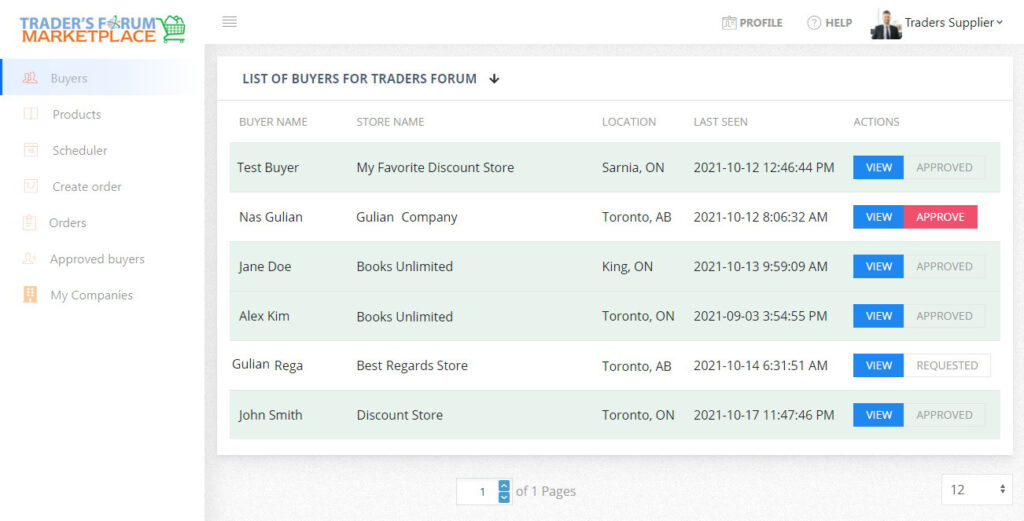
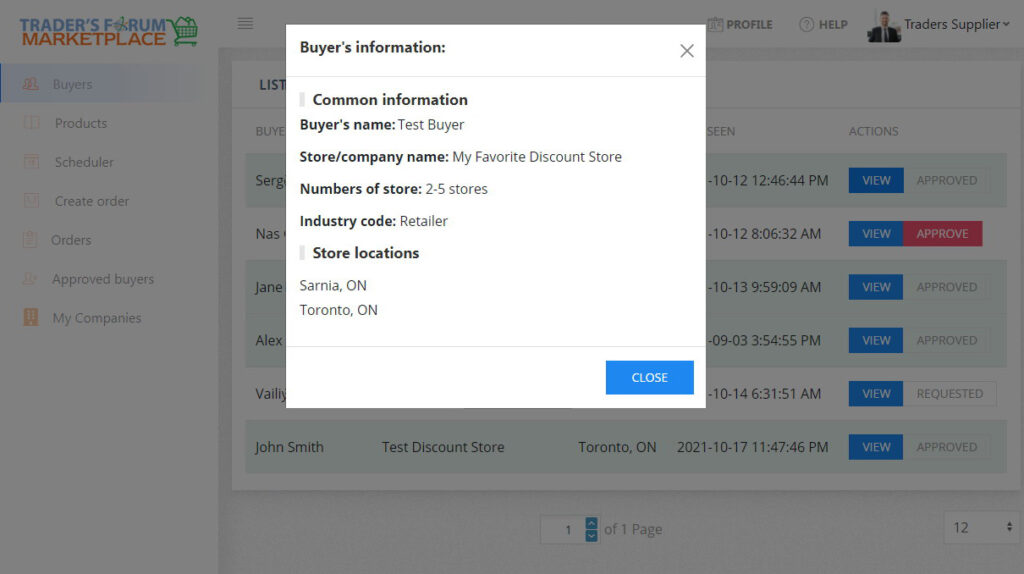
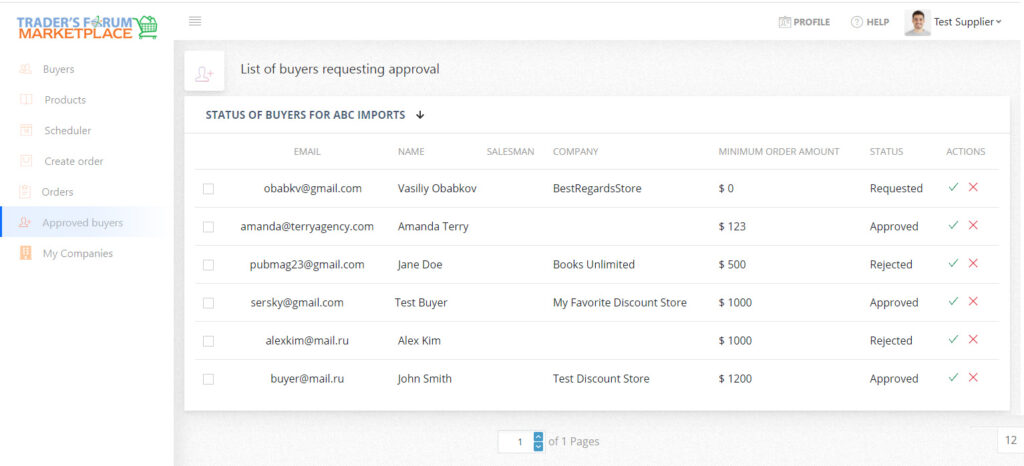
Orders
This section shows the List of orders. By clicking on any order, you’ll be leaded to the order details.
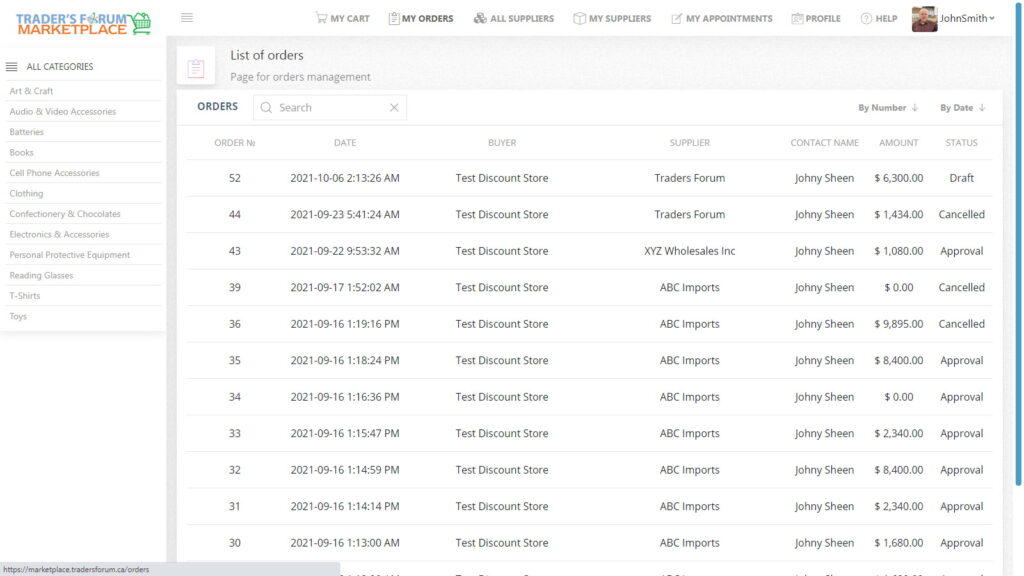
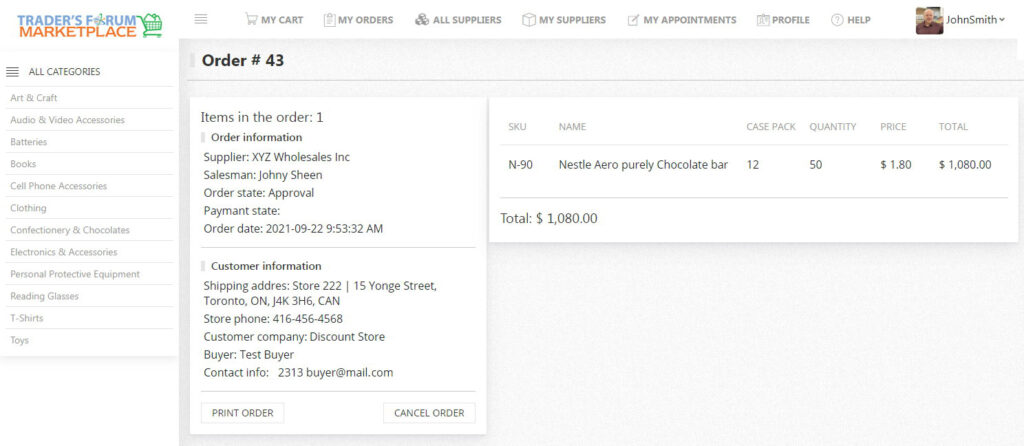
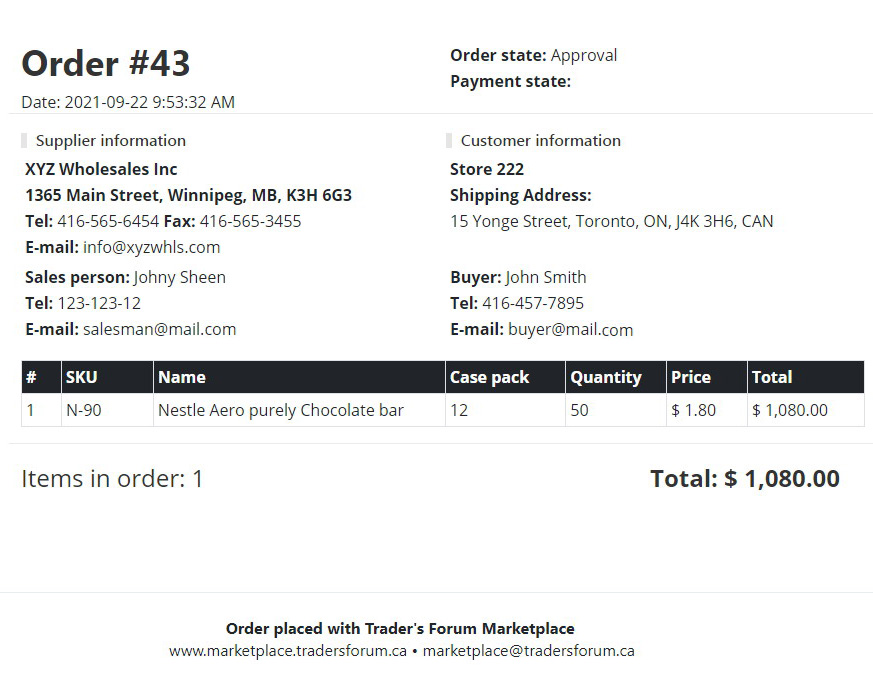
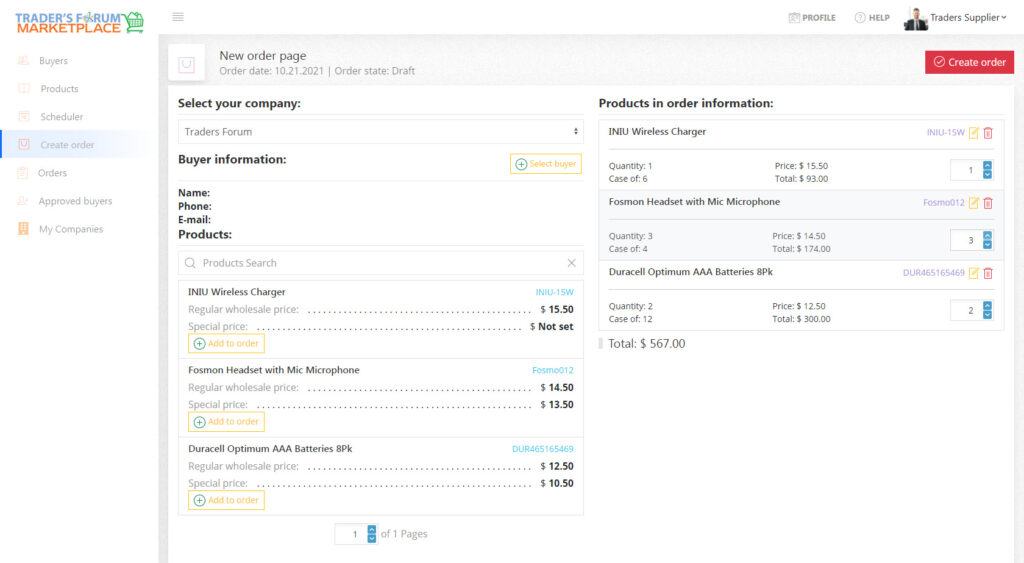
To Create an order for a buyer:
- Click on Create Order on the left menu
- Click on Select Buyer
- Search for a Buyer or click on New buyer button to add a new customer
- Select your products and Add them to the order.
- You can also Search for a specific Item in a Product Search
- In case you’d like to edit item prices, click on Edit Price button
- Click on CREATE ORDER to complete

Appointments
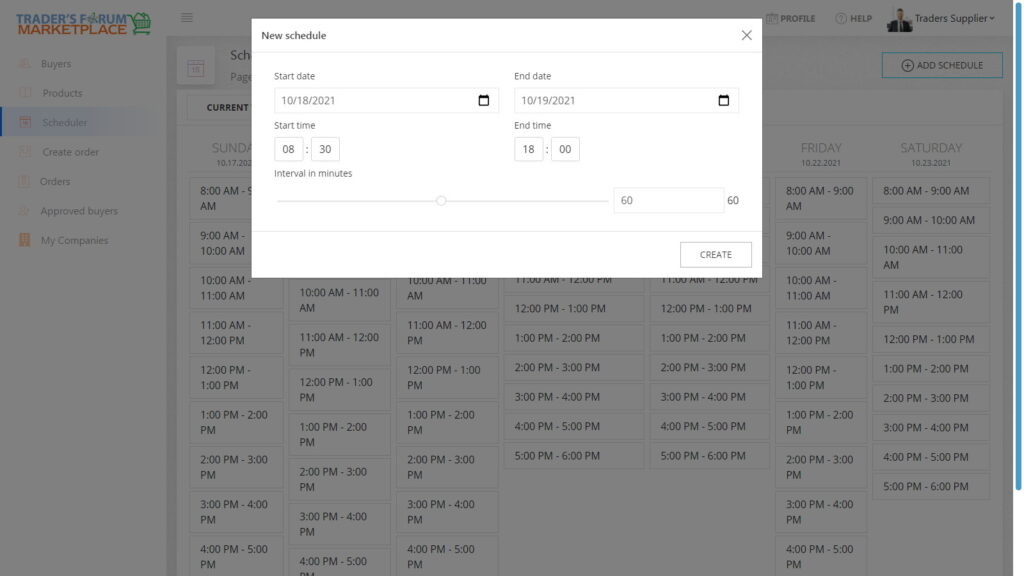
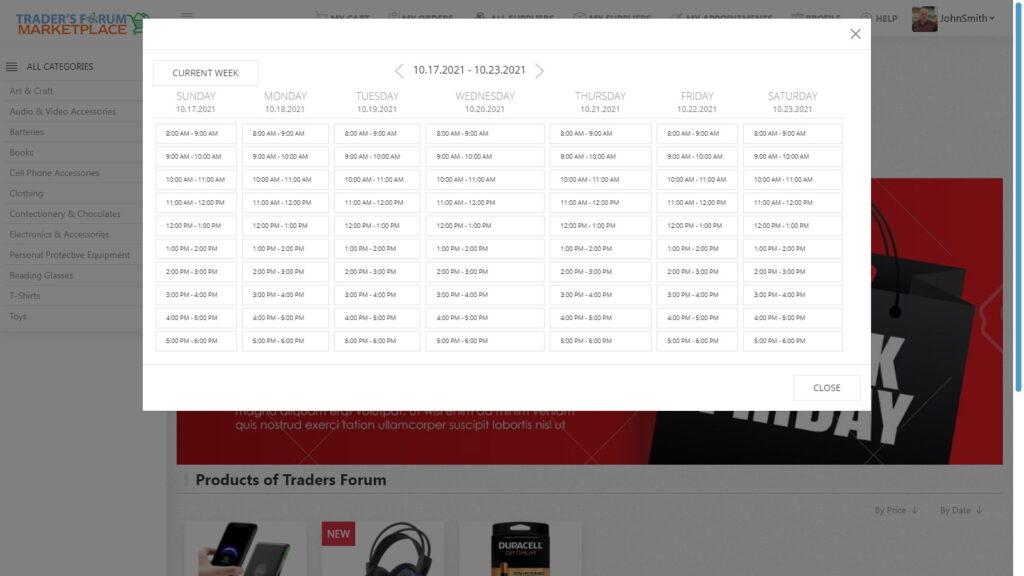
Salesperson is able to create a schedule, that buyers will be using to book their appointments
To create a Schedule:
- Click on Scheduler
- Click on Add Schedule button
- Select a Start / End Dates and Time
- Click on Create to confirm
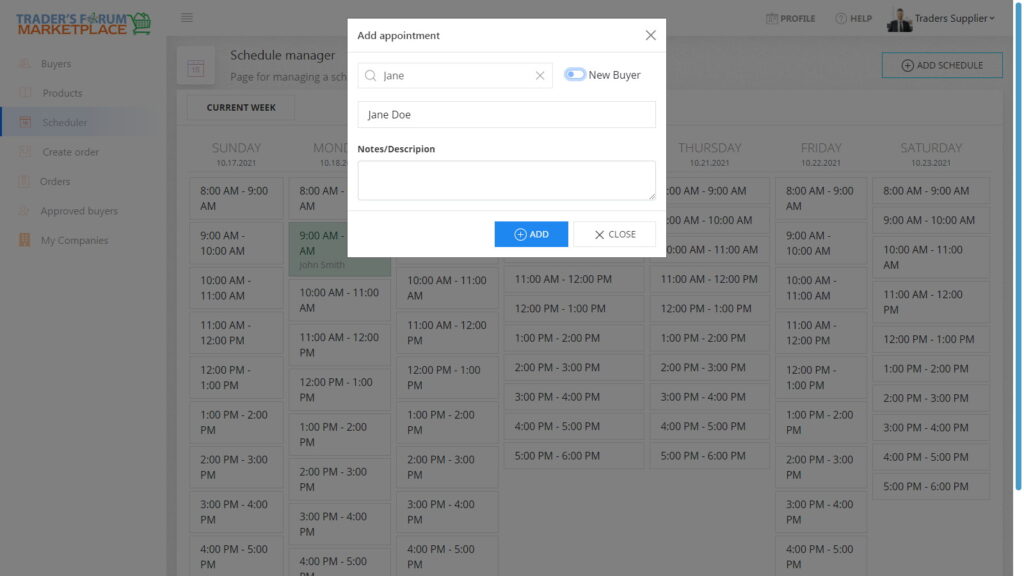
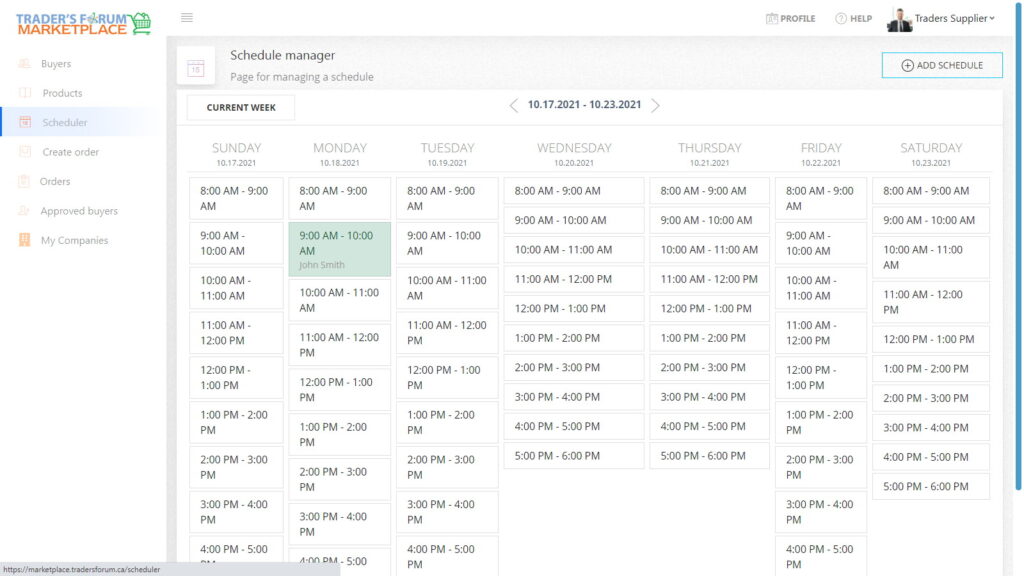
Sales person can Add an a appointment for a specific Buyer:
- Once a schedule has been created, click on the desired time slot
- Search for a Buyer by the name or click on New Buyer to add a new buyer
- Add Notes if necessary
- Click on ADD to confirm the appointment
- A confirmation email will be sent to a buyer and a sales person
User's Profile

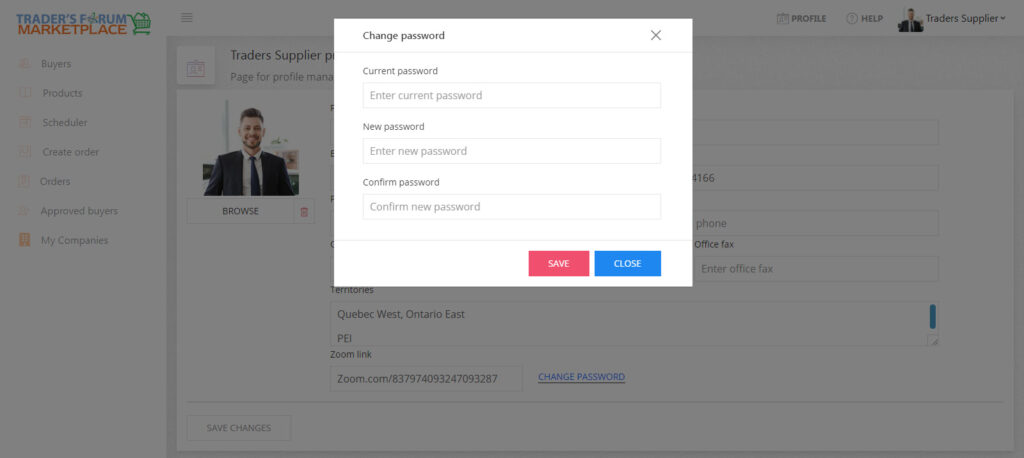
To change a Password, do the following:
- Click on Profile
- Click on Change Password to open the form
- Choose a save a new password
Sales person can Add an a appointment for a specific Buyer:
- Once a schedule has been created, click on the desired time slot
- Search for a Buyer by the name or click on New Buyer to add a new buyer
- Add Notes if necessary
- Click on ADD to confirm the appointment
- A confirmation email will be sent to a buyer and a sales person